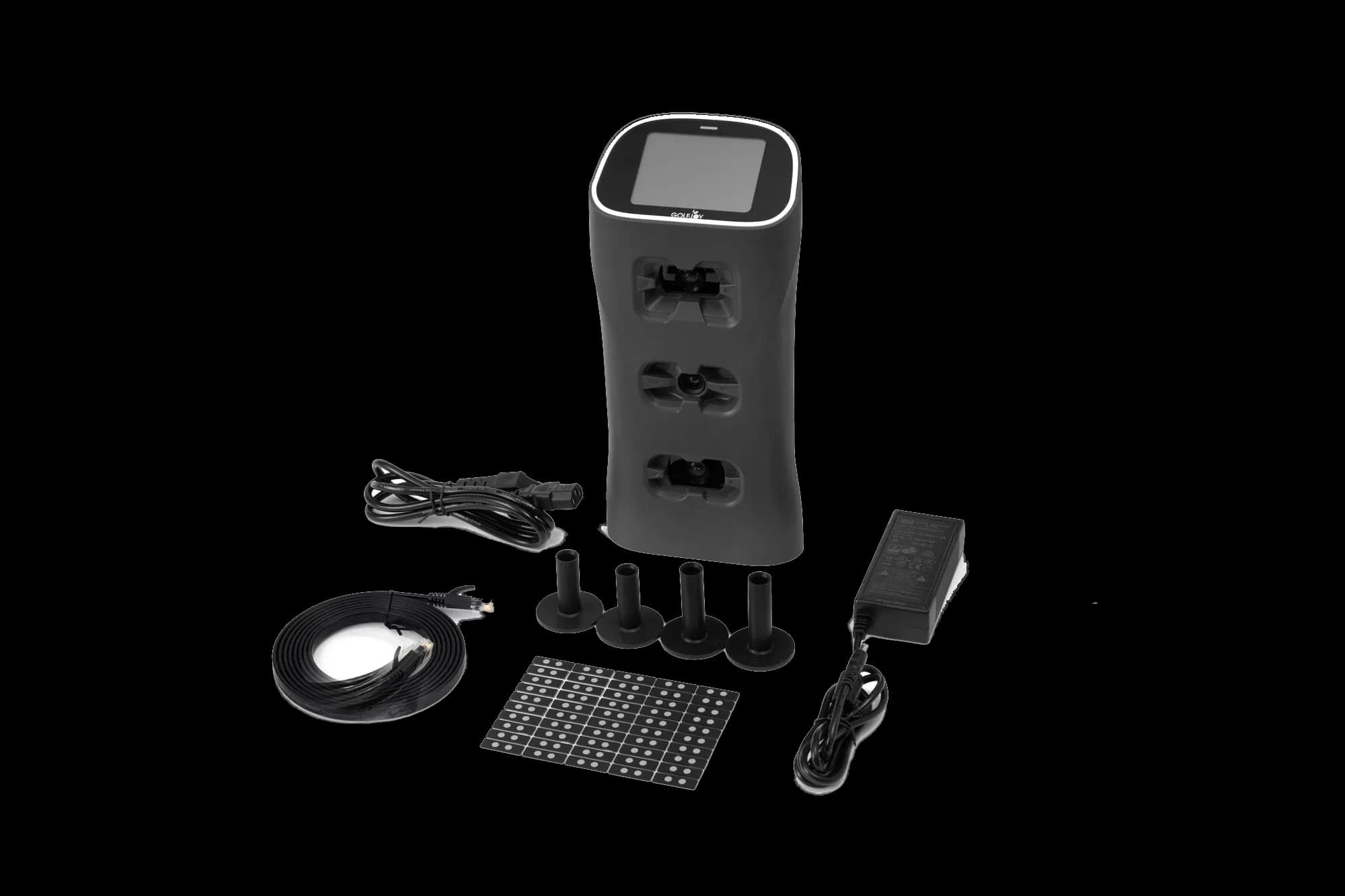
Spica 3
Manual and videos available
The Spica 3 manual covers product use. Official videos show unboxing plus phone and computer connection.
Owner support
Find product manuals, setup videos, software downloads and support for GOLFJOY launch monitors, simulators and commercial systems.
How can we help?
Watch unboxing, connection, installation and calibration walkthroughs.
Check the minimum and recommended Windows PC specs before you install.
Technical help with setup, connection, software, firmware and calibration.
Downloads
GOLFJOY software runs on a Windows PC. Check the PC requirements on the Software page, then install in the order shown: Core Software first, the optional Course Library second, and the Install Helper if you need help finishing the installation. Files download from greenjoyclub.com, GOLFJOY's former brand domain.
01
Install first. Windows download, 22.67 GB, from the US server. Includes the GOLFJOY application, one course and one driving range. Extract the ZIP, keep every split 7z part together, then extract the full set before installing. Leave plenty of extra free disk space for extraction.
02
Optional. Windows download, 65.80 GB, from the US server. Adds the full course library. Install it after the Core Software, using the same ZIP and 7z extraction steps.
03
Need help installing? Run this Windows installation utility, about 176 MB, or contact GOLFJOY Support.
Use only when GOLFJOY Support asks you to. Windows network configuration utility, about 26 MB.
Owner resources
Find the manuals, videos and support resources currently available for each GOLFJOY product.
Current hardware
Each card shows the manual, setup videos or order setup support available for that model. Compare specs and metrics by model.
Manual and videos available
The Spica 3 manual covers product use. Official videos show unboxing plus phone and computer connection.
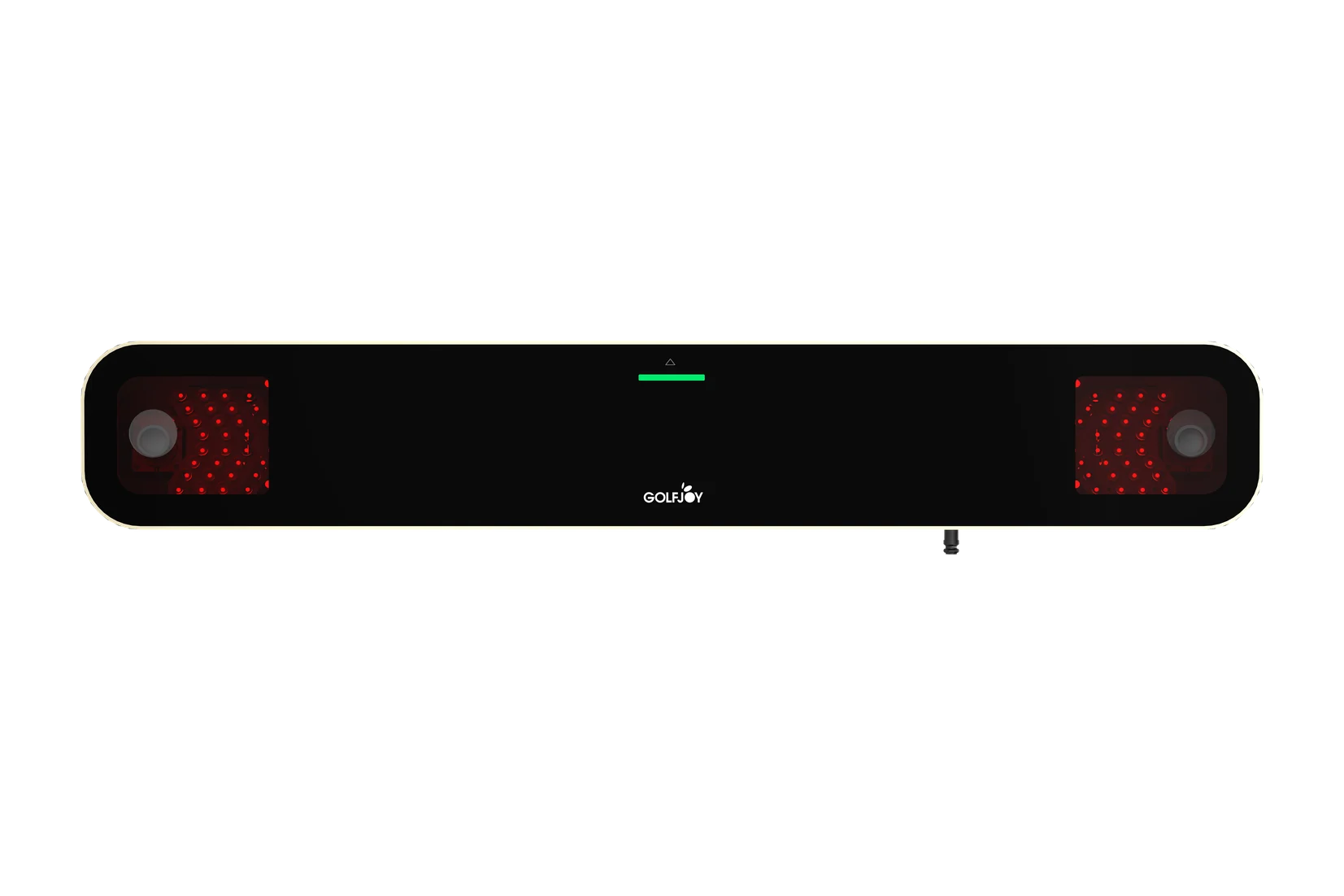
Manual and leaflet available
The Rigel 2 user manual covers the contents, specifications, installation, one-click calibration, club stickers and zone checks. The leaflet summarizes the key specifications.
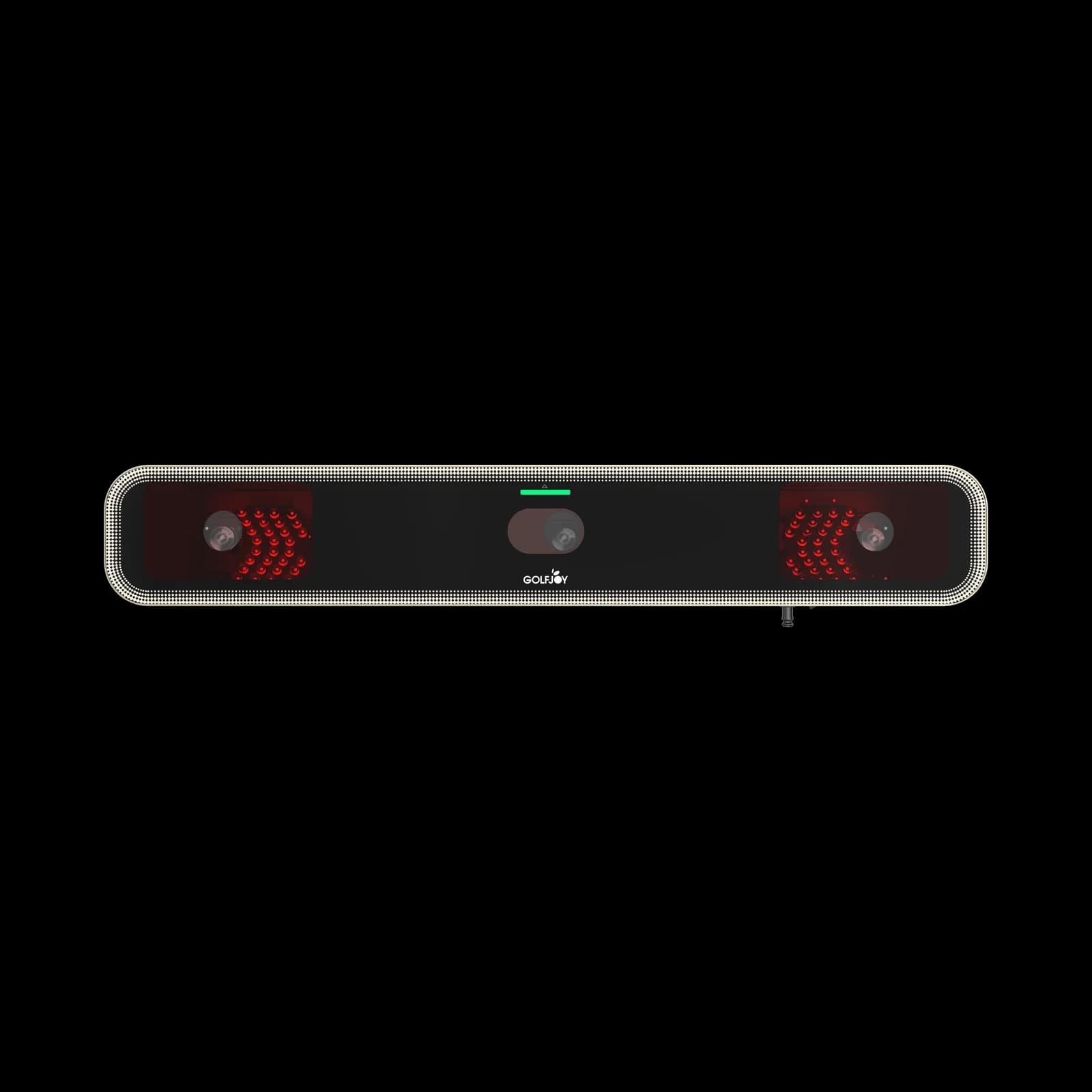
Leaflet and setup support
The Rigel 3 leaflet summarizes the key specifications. Mounting, calibration and service steps are confirmed with each order, and GOLFJOY Support helps with setup questions after delivery.
Complete systems
Complete simulator and commercial installations may require project-specific documentation in addition to the public component manuals listed below.

Spica 3 guides available
P8 includes Spica 3, so the Spica 3 manual and setup videos cover the launch monitor. Room assembly, PC and component details are confirmed with your P8 order.
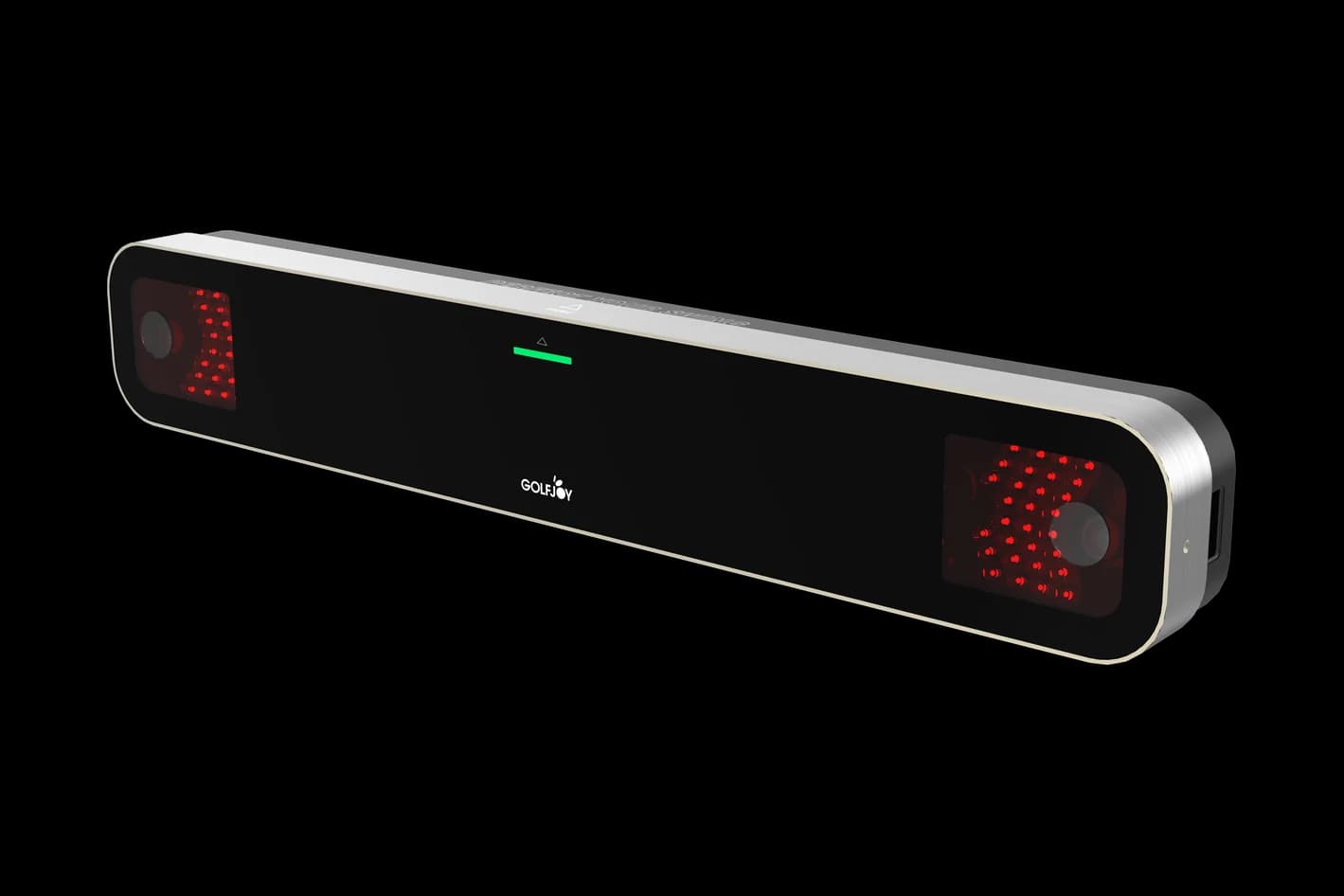
Project setup support
S200 uses Rigel 2, which is set up as part of each project. Mounting, calibration, room installation and handoff are covered in your project documents.
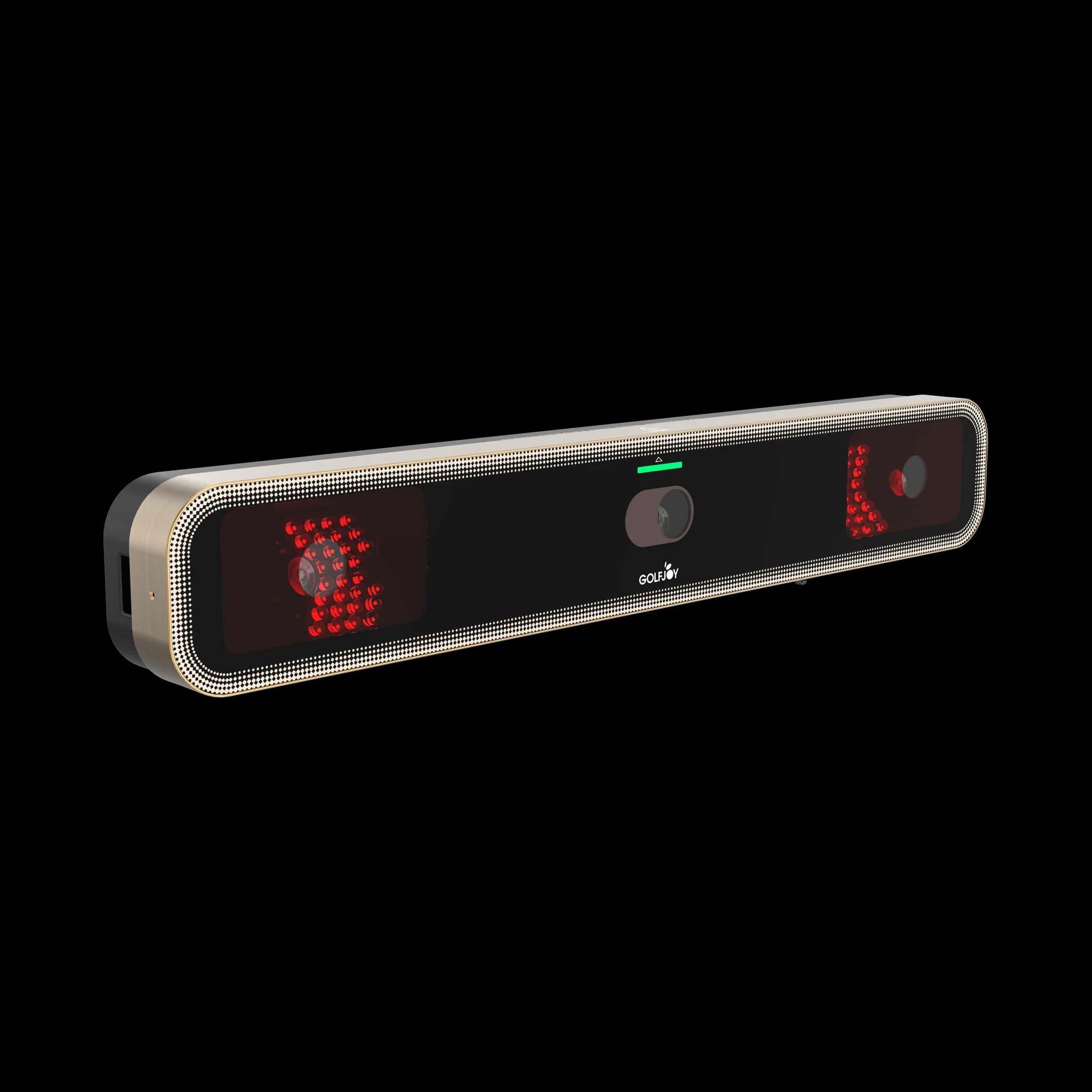
Project setup support
S300 uses Rigel 3, which is set up as part of each project. Mounting, calibration, room installation and handoff are covered in your project documents.
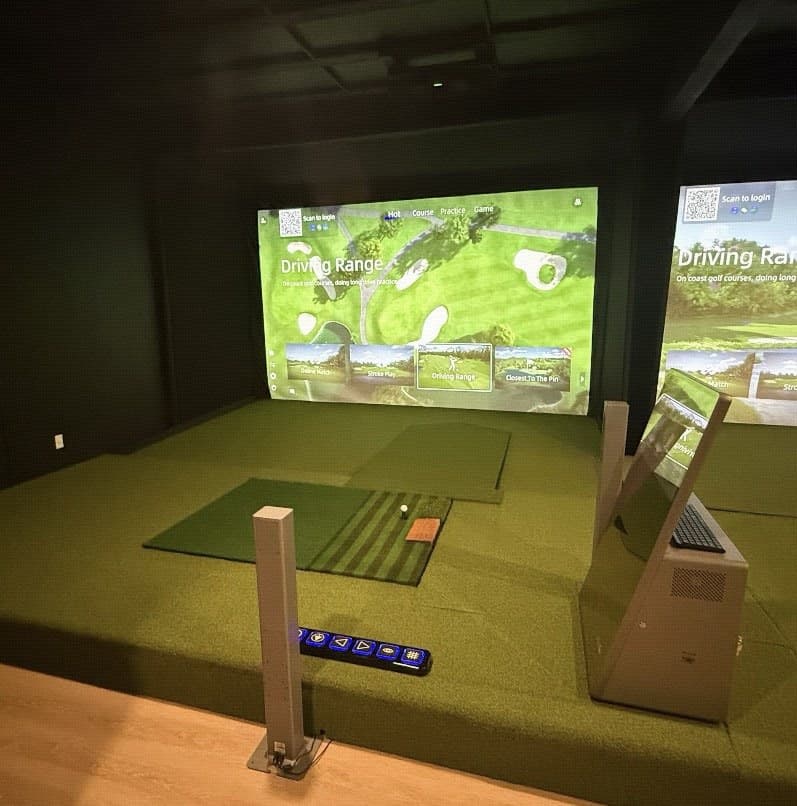
Project setup support
S200 Pro and S300 Pro add the Auto Tee and Smart Putting System to the room. Rigel 2 or Rigel 3 setup is planned with each project and covered in your project documents.
Commercial range
Range terminals are configured for each site. Public manuals and guides are listed where available.
Manual available
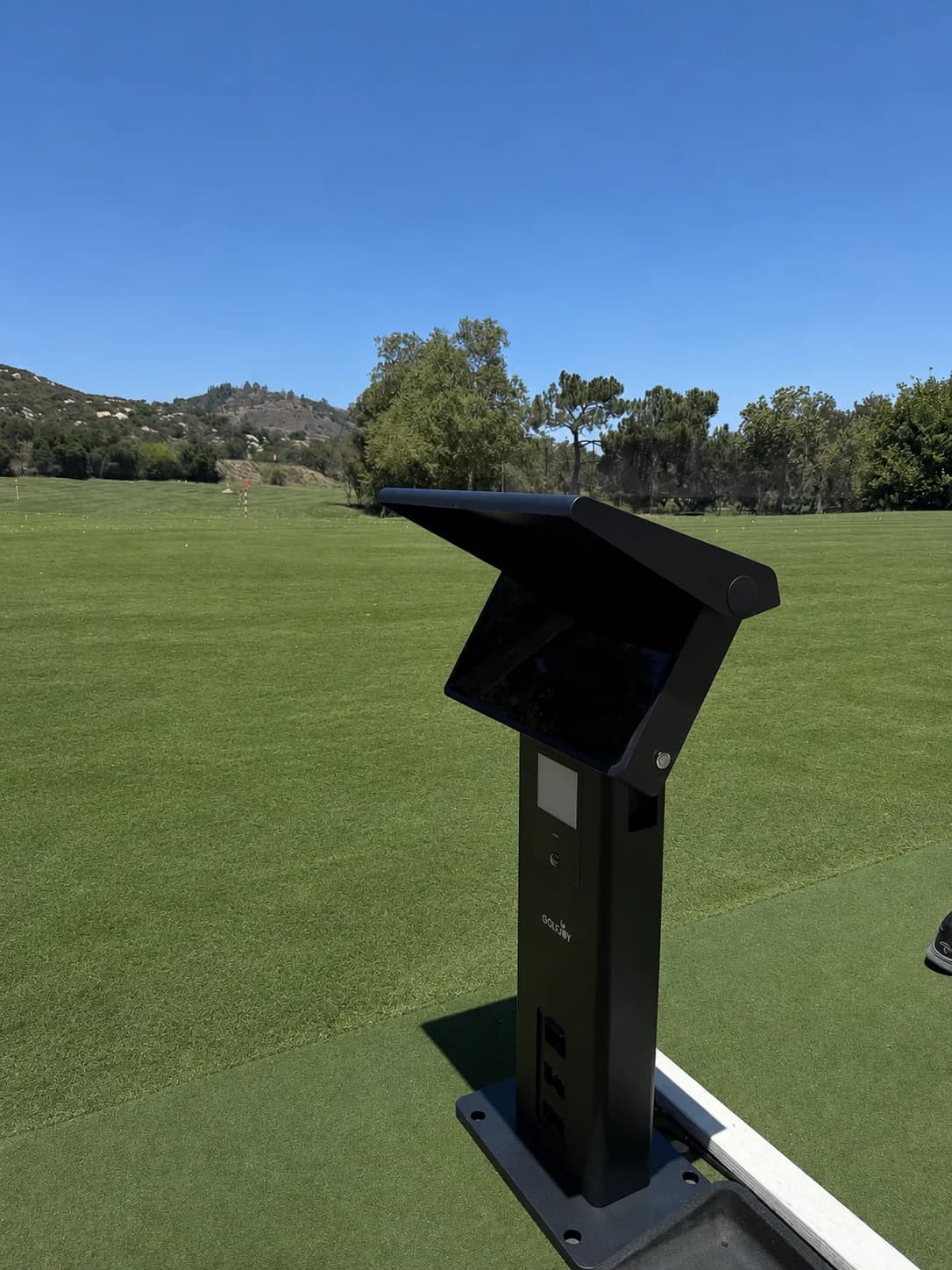
The GDA21 manual covers dimensions, connections, hitting zones and software basics.
Site setup support
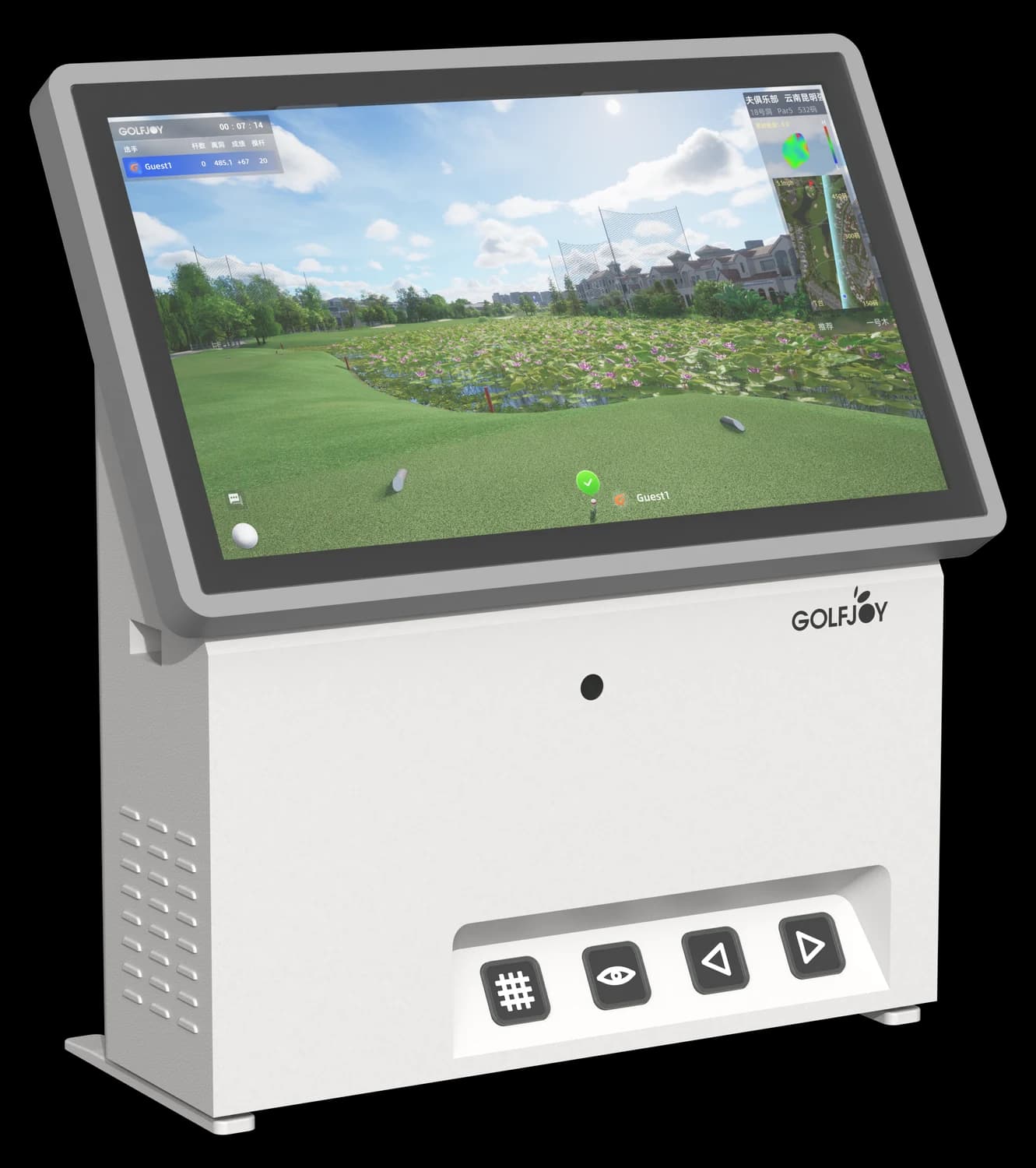
GDA 32 and GDA 43 are sheltered-bay terminal configurations planned for each site, including screen size, software, tracking hardware, power and network.
Existing owners
Retired products are no longer sold in the US, but their owner resources remain available here.
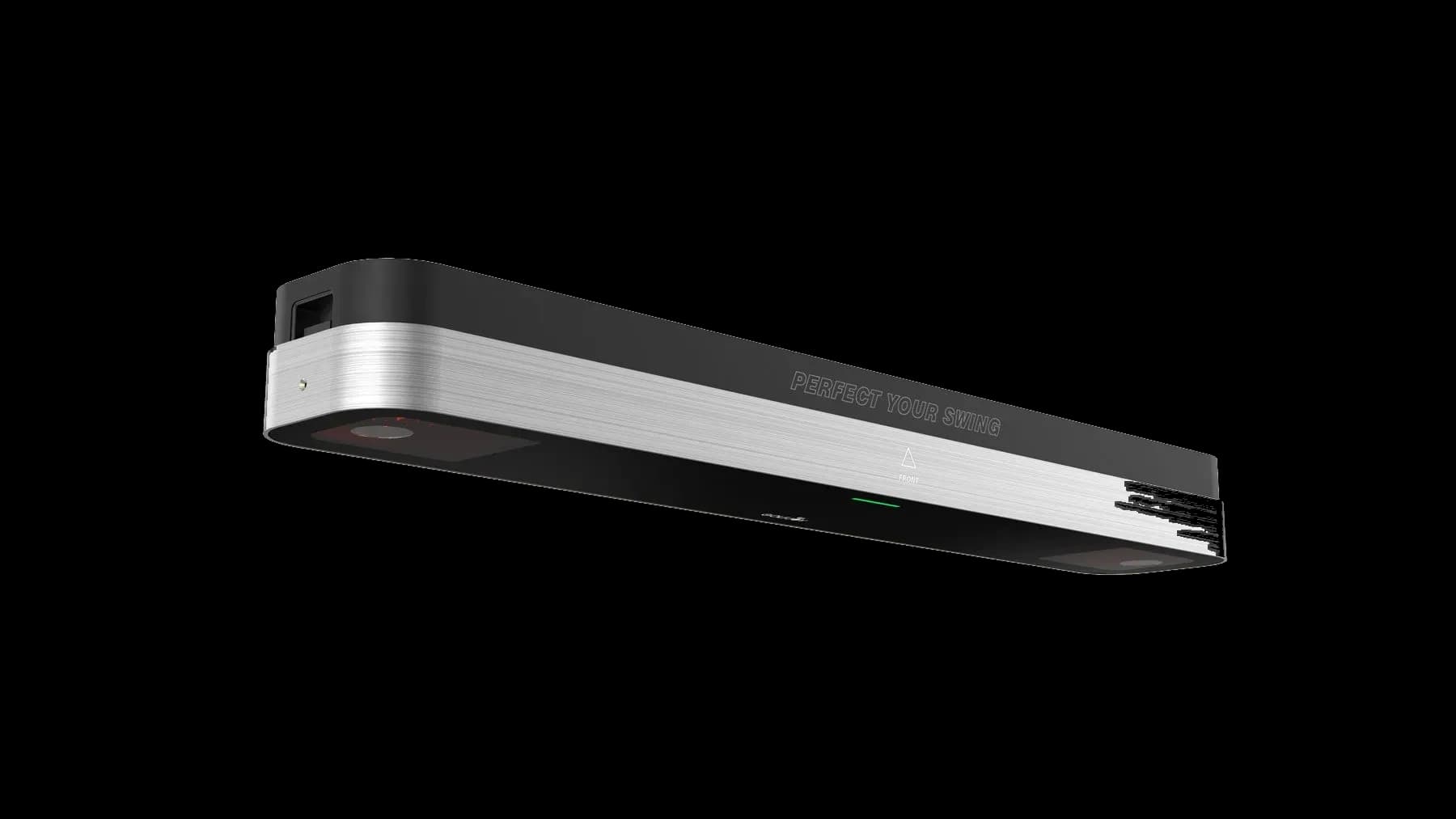
Legacy owner manual and videos
Retired from US sales. The owner manual covers installation, connection, calibration and operation, and the installation and calibration videos remain available.
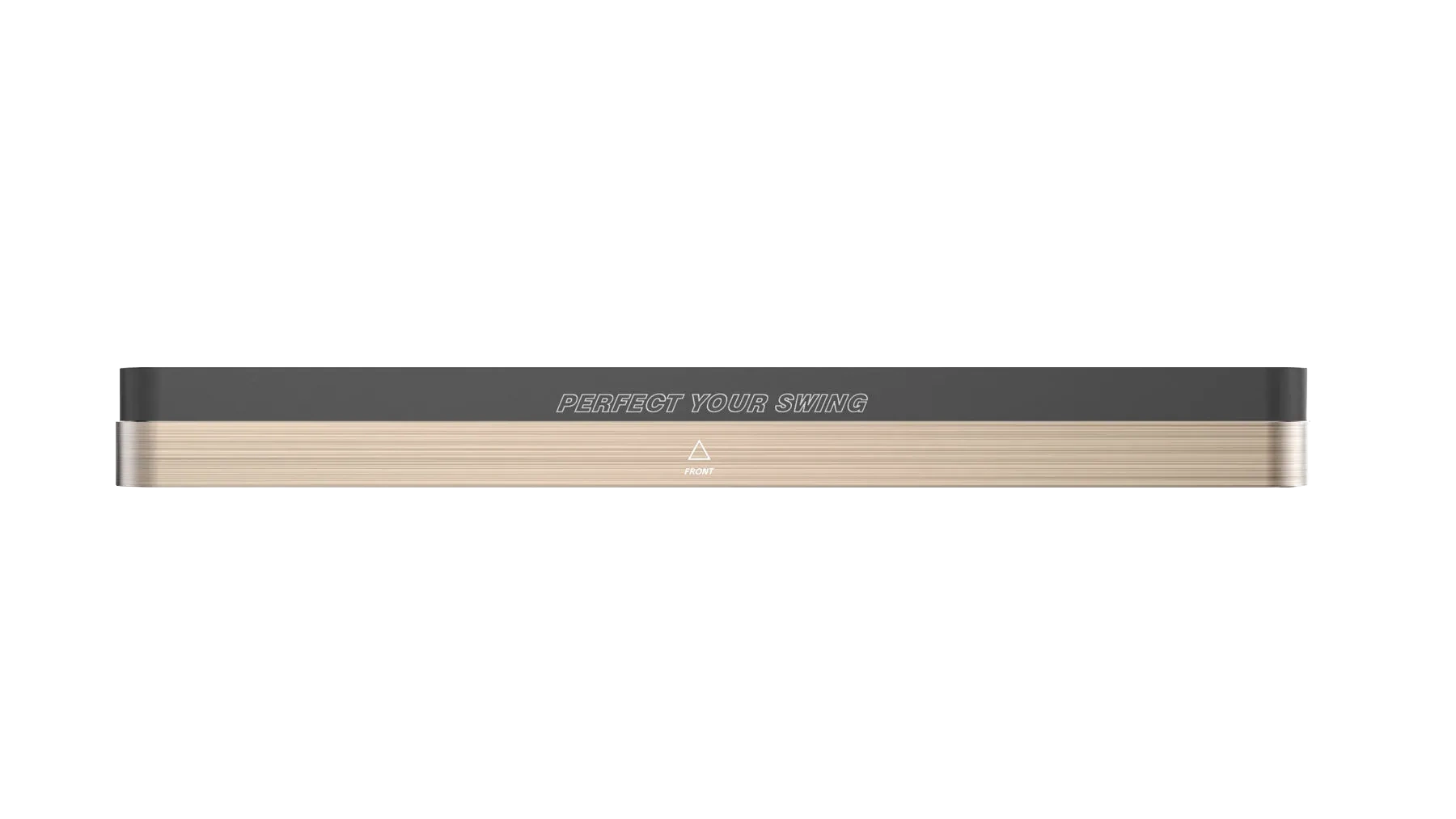
Legacy owner manual and videos
Retired from US sales. The owner manual covers installation, connection, calibration and operation, and the installation and calibration videos remain available.
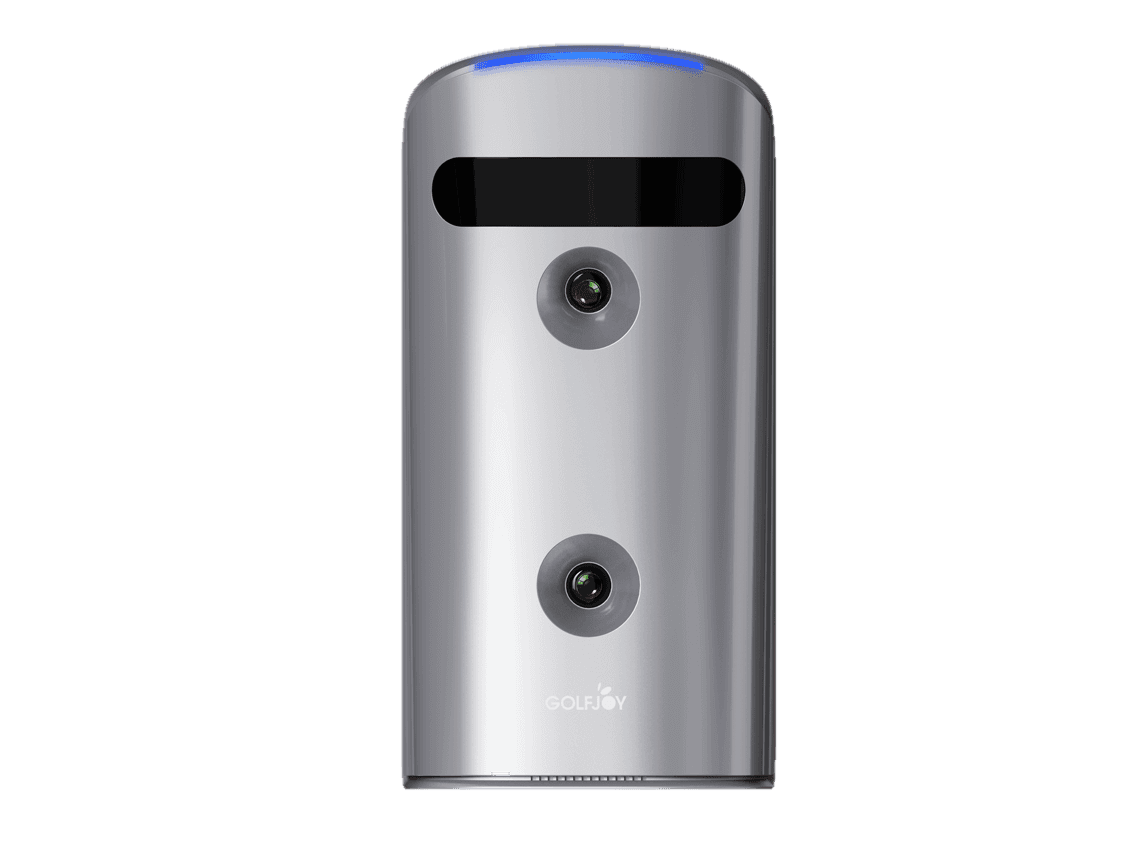
Legacy owner manual available
Retired from US sales. The owner manual remains available. Include your serial number and software version when you contact Support.
Public manuals provide general product guidance. Project-specific simulator and commercial installations should follow the final documentation supplied with the order.
Manuals
Download the current user manuals for Spica 3, Rigel 2 and GDA21. Rigel 3 setup is covered with each order. Manuals for the Rigel 2 (Previous Model), Rigel 3 (Previous Model) and GDS Pro are listed above under Legacy Owner Support.
Contents, specifications, installation, calibration, club stickers and zone checks.
Straight answers
Install the GOLFJOY Core Software on your Windows PC first. It includes the GOLFJOY application, one course and one driving range. Add the optional Course Library afterward for more courses. Both downloads are under GOLFJOY Software Downloads on this page.
Check the minimum and recommended Windows PC requirements on the Software page before you install or buy a computer. If you are not sure your PC qualifies, send its processor, graphics card and memory to GOLFJOY Support.
Follow the connection steps in your model's manual and the setup videos on this page. If it still does not connect, contact GOLFJOY Support with your model, serial number, software version and a photo or screenshot of what you see.
Include both in every support request. If you are not sure where to find them on your model, send a photo of the product label and GOLFJOY Support will help you locate them.
The Firmware Updates page lists the latest firmware and release notes for each model. Check the product label to confirm your exact model. On Spica 3, Menu > About on the launch monitor screen shows the installed firmware version. If your version is older, contact GOLFJOY Support for the confirmed update steps for your model before you start.
Rigel 2 uses one-click calibration with the included calibration board and the GOLFJOY Install Helper on your PC, and the Rigel 2 user manual walks through each step. Calibration steps for the Rigel 2 (Previous Model) and Rigel 3 (Previous Model) are in their legacy manuals and installation videos. For Rigel 3, other models and installed simulator rooms, contact GOLFJOY Support with your model and serial number.
Yes. GOLFJOY has native GSPro integration, announced in March 2026, and also supports E6 and Creative Golf 3D. Each program is licensed separately by its publisher. Contact GOLFJOY Support to confirm compatibility with your exact model and software version.
Your product or system, serial number, software version, the issue category and a short description of what happens and at which step. Photos, screenshots or a short video help Support respond faster.
It depends on the model. Compare current models on the Compare page, and see what each metric means on the Technology page.
Small hardware orders and installed simulator projects do not follow the same schedule. Your cart or written proposal confirms the shipping method, delivery window, site requirements and installation date that apply to your order.
Use the Shipping, Returns and Warranty pages linked in the site footer. Return eligibility varies by item and order, and your checkout, order confirmation or written proposal sets the terms for your exact order.
Technical support
For help with setup, connection, software, firmware or calibration on a GOLFJOY product you own. Including these details up front helps our team start on your request without extra back-and-forth.
01
The model or system name, such as Spica 3, Rigel 3 or S300.
02
Send a photo of the product label if you are not sure where to find it.
03
The GOLFJOY software version installed on your PC or phone.
04
Setup, connection, software, firmware, calibration or hardware.
05
What happens, at which step, and what you have already tried.
06
A photo, screenshot or short video of the issue helps us respond faster.
Send the details above to GOLFJOY Support and a specialist will review your request. For pricing, quotes or a new project, contact our Sales team.