







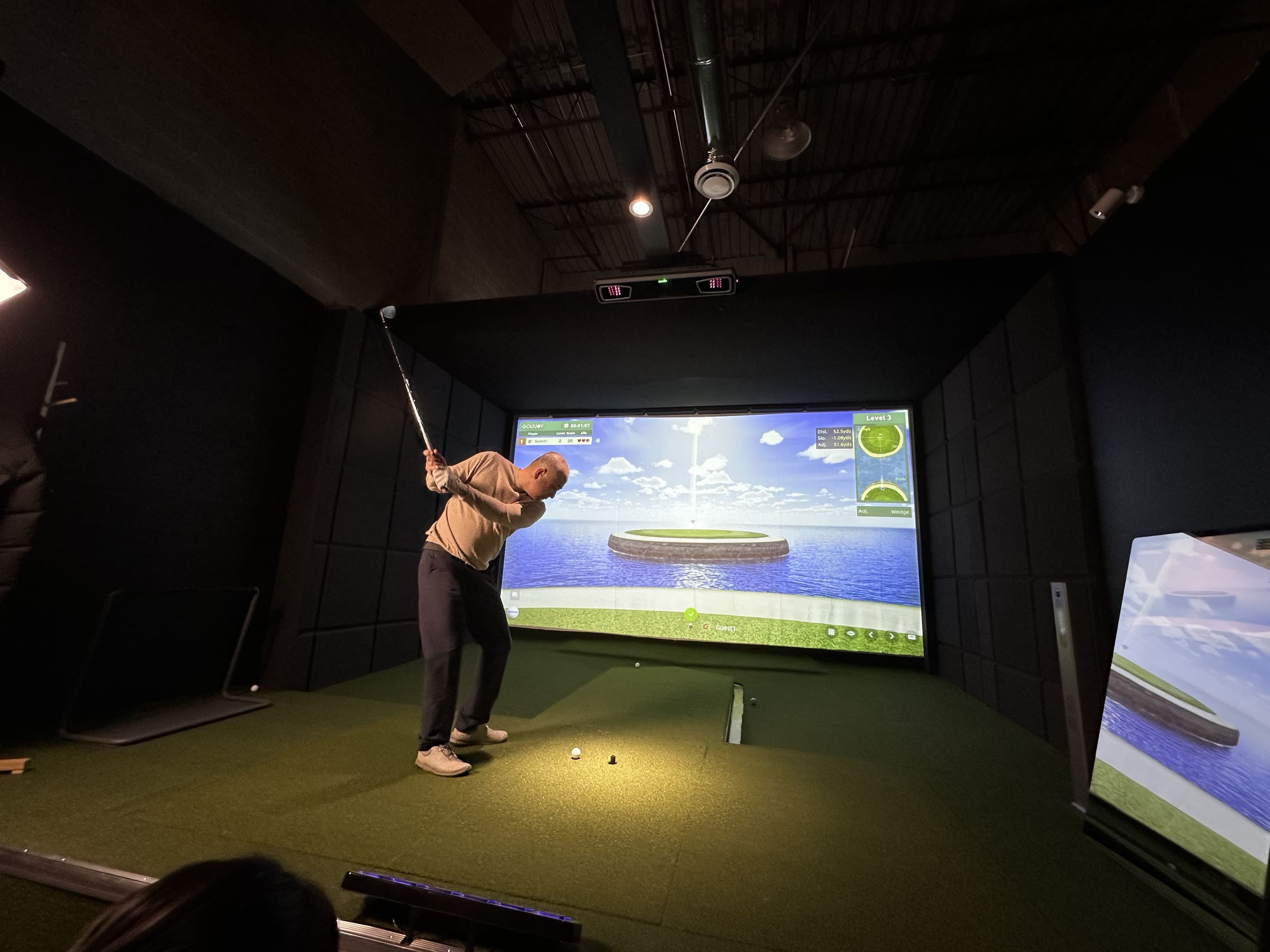




Golf simulator software can look simple from the player’s side: select a course, place a ball, and hit. Behind that experience is a chain of hardware, tracking, graphics, account, and network requirements that must work together.
A system may launch correctly but still deliver a poor experience if the computer struggles with the selected resolution, the launch monitor connection is unstable, or updates and licenses are not planned before installation.
The right specification should be based on the intended workload. A home practice screen, a 4K private studio, and a multi-bay commercial venue do not place the same demands on graphics, storage, network management, or technical support.
Start With the Complete Software Workflow
Before choosing a PC, identify what the golf simulator software needs to do. Course play is only one part of the workflow.
- Receive shot data from the tracking device
- Calculate and display ball flight
- Render the course at the selected resolution
- Save local or cloud-based player information
- Manage accounts, subscriptions, and course access
- Support online play, updates, and remote service
- Connect optional displays, cameras, audio, or touch controls
A PC that is adequate for a practice range may not be sufficient for high-detail course rendering. Likewise, a powerful PC will not solve an incompatible device connection or poorly configured network.
Match the PC to Resolution and Display Load
Graphics resolution is one of the strongest drivers of PC requirements. Higher resolution increases the number of pixels the graphics card must render for every frame.
|
Use Case |
Typical Display Goal |
Planning Focus |
| Basic practice station | 1080p single display | Stable frame rate and fast startup |
| Premium home studio | 1440p or 4K projection | Stronger GPU, cooling, and suitable video output |
| Commercial bay | High-resolution projection plus control display | Continuous operation, service access, and replacement planning |
| Multi-display coaching setup | Projector, monitor, and swing-video screen | Multiple outputs, capture devices, and cable bandwidth |
Instead of selecting a computer by one component, review the complete balance of graphics card, memory, storage, power supply, cooling, and ports.
| Component | Role | Consideration |
|---|---|---|
| GPU | Handles graphics rendering | Important for 4K projection and high-detail courses |
| CPU | Processes software tasks | Supports smooth operation and multitasking |
| RAM | Supports multiple applications | More useful for commercial environments |
| Storage | Stores software and courses | Keep sufficient free space for updates |
| Cooling | Maintains stable performance | Important for long simulator sessions |
Leave performance headroom rather than designing for the minimum startup requirement. Course libraries and software features can expand, while operating-system updates may increase background demand.
Confirm Launch Monitor Compatibility Before Buying Hardware
The selected golf launch monitor must be supported by the software version, connection method, and license being installed. Before purchasing a simulator PC, users should confirm compatibility between their computer, launch monitor, and simulator software.
Compatibility should be confirmed at three levels:
- Hardware recognition: the computer can detect and communicate with the tracking device.
- Data integration: the software receives the required ball and club values in the expected format.
- Feature support: practice modes, putting, video, multiplayer, or third-party integrations work with the chosen configuration.
A device may connect successfully but provide only a subset of metrics in a specific software platform. Buyers should check which data points and functions are available rather than assuming that every supported connection delivers identical features.
Also confirm the physical connection. USB cable length, Ethernet routing, Wi-Fi stability, Bluetooth range, and required adapters can all affect installation.
Plan Storage for Courses, Updates, Video, and Logs
Storage requirements grow over time. Course downloads, software updates, swing videos, customer data, screenshots, and troubleshooting logs can gradually reduce available space.
- Keep the operating system and active software on fast storage.
- Reserve free capacity for updates and temporary files.
- Store large video archives separately when coaching footage is retained.
- Use a backup process for essential customer or business records.
- Avoid filling the system drive close to capacity.
For a venue, standardizing the folder structure across bays makes support easier. Staff should know where logs, screenshots, and exported session data are stored.
Internet Speed Is Only One Part of Network Reliability
Online play and software updates require internet access, but local network design can be equally important. A fast internet plan cannot compensate for weak Wi-Fi coverage, overloaded access points, damaged cables, or incorrect firewall rules.
- Use wired Ethernet for fixed simulator equipment where practical.
- Separate guest Wi-Fi from simulator and administrative devices.
- Assign clear names to each bay and network connection.
- Confirm that software update servers and remote support tools are not blocked.
- Test simultaneous use when several bays may be online at once.
- Keep router, switch, and account information available to authorized staff.
Latency and packet stability may matter more than headline download speed for real-time multiplayer sessions. The network should be tested with the actual software, not only with a browser speed test.
Home vs Commercial Golf Simulator PC Requirements
A personal golf simulator usually has one primary user group, one bay, and a simpler account structure. The owner can often schedule updates and maintenance around personal use.
A commercial golf simulator may need several bays to start quickly, run for long hours, support staff handovers, and recover from problems without cancelling customer bookings. This is especially important for indoor golf clubs, golf academies, and entertainment venues operating multiple simulator bays.
|
Requirement |
Home Setup |
Commercial Venue |
| User accounts | One family or small group | Many customers and staff roles |
| Operating hours | Intermittent | Extended and predictable |
| Updates | Can be scheduled flexibly | Should be tested before deployment |
| Backup equipment | Optional | Useful for reducing downtime |
| Network | Single-bay connection | Multi-bay, guest, booking, and admin traffic |
| Support records | Basic notes may be enough | Standard logs and bay identification are important |
Licensing and Accounts Should Be Documented
Before opening the system, document the software edition, subscription term, login owner, renewal date, included courses, permitted devices, and any third-party accounts. For commercial operators, understanding software licensing, supported devices, and account management is important before opening the facility.
Avoid creating business-critical accounts under a temporary installer’s personal email address. Commercial venues should define who can change passwords, purchase courses, approve updates, and contact support.
If multiple bays use the same platform, confirm whether each bay needs a separate license and whether accounts can be managed centrally.
Use a Pre-Installation Test Bench
Whenever possible, assemble the computer, tracking device, software, and network connection before final room installation.
- Install the operating system, drivers, and software.
- Connect the launch monitor and verify shot detection.
- Set the intended display resolution and graphics quality.
- Download required courses and updates.
- Test online login and multiplayer functions.
- Restart the complete system and confirm automatic recovery.
- Record versions, licenses, and settings before delivery.
A test bench separates software and compatibility problems from room-construction problems. It also reduces commissioning time when the equipment reaches the final site.
Conclusion
Choosing the right golf simulator computer requirements is not only about purchasing a powerful gaming PC. A reliable simulator setup depends on matching hardware, graphics performance, launch monitor compatibility, software, network, and operating workflow.
Specify the real use case first, leave performance headroom, confirm compatibility in writing, and test the complete workflow before installation. These steps improve startup reliability and make future updates and support easier.
FAQ
Do all golf simulator programs need a gaming PC?
Not all programs require the same performance level. Resolution, course graphics, connected displays, and software features determine the appropriate hardware.
Is Wi-Fi enough for a golf simulator?
It may be sufficient for some home systems, but wired Ethernet is usually more predictable for fixed equipment, large downloads, online play, and multi-bay venues.
Can one PC run more than one simulator bay?
This depends on the software, tracking devices, display outputs, and licensing. Commercial venues normally benefit from independent bay computers because faults and updates remain isolated.
How much storage should be reserved?
The answer depends on course libraries, video recording, and update size. Plan free capacity for future content rather than filling the drive during initial installation.
What graphics card do I need for a golf simulator?
The required graphics card depends on the simulator software, resolution, and display setup. Higher-resolution projection and commercial environments generally require stronger GPU performance to maintain smooth graphics.
Can I use my existing PC for a golf simulator?
Some existing computers may work if they meet the software, graphics, connection, and display requirements. Always check compatibility with your launch monitor and simulator software before installation.

Leave a comment
All comments are moderated before being published.
This site is protected by hCaptcha and the hCaptcha Privacy Policy and Terms of Service apply.